
 Posted By
Well, all of you are aware of iTunes the app from Apple that helps you to connect your iOS device to your computer. And without this, it is difficult for the ioS device to sync the data with the PC. so there are lots of users who are using this software on their personal computer. But what if you don’t have this tool and you urgently need to transfer music or something else from your computer to iPhone. There are lots of iPhone users that might not know that you can even transfer files from your iPhone to your PC wireless. Normally all users use USB data cable to transfer files from PC to iPhone and vice versa using iTunes on your PC. But now you can use your iPhone app over the common shared wifi network of both the device to transfer files at high speed.
Recently I faced the problem when I was not having iTunes on my new laptop and I urgently needed some audio clips to be there on my iPhone. So I researched on this and got some ways that we can use to transfer data from PC to iPhone. I tried 3-4 possible ways and found few of the much convenient that we can use to easily share music. So today I was thinking to share those ways that you guys can also use as sometimes you must not have iTunes in your PC so you can use such methods to share the data between these two devices. So have a look at complete guide discussed below to proceed.
Using Air Transfer
1. First of all download and install cool ios app that is Air Transfer on your iPhone.
2. Now after opening the app, you will see a screen like below.
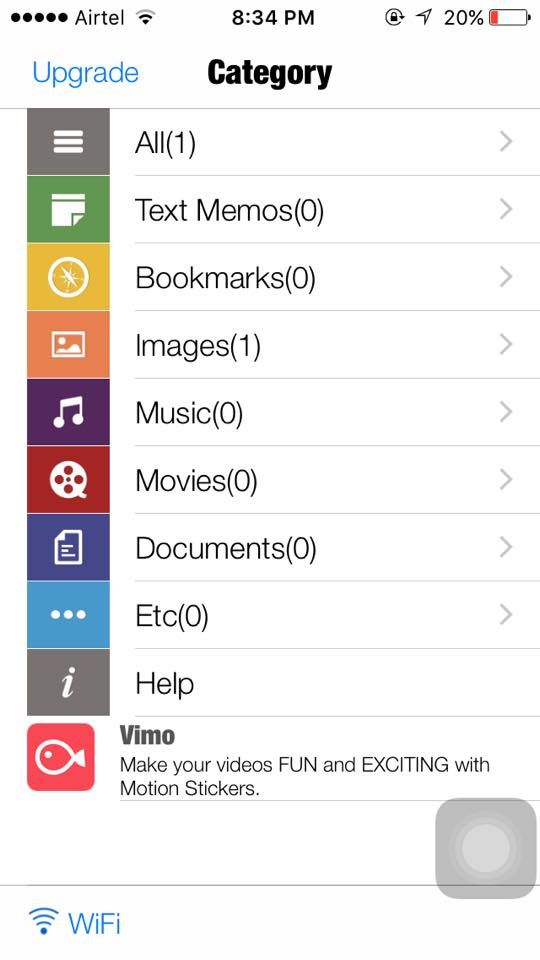
3. Now at the right bottom corner tap on Wifi button.
4. Now the app will get connected to your router and will generate a URL that you have to open in the web browser of your PC.
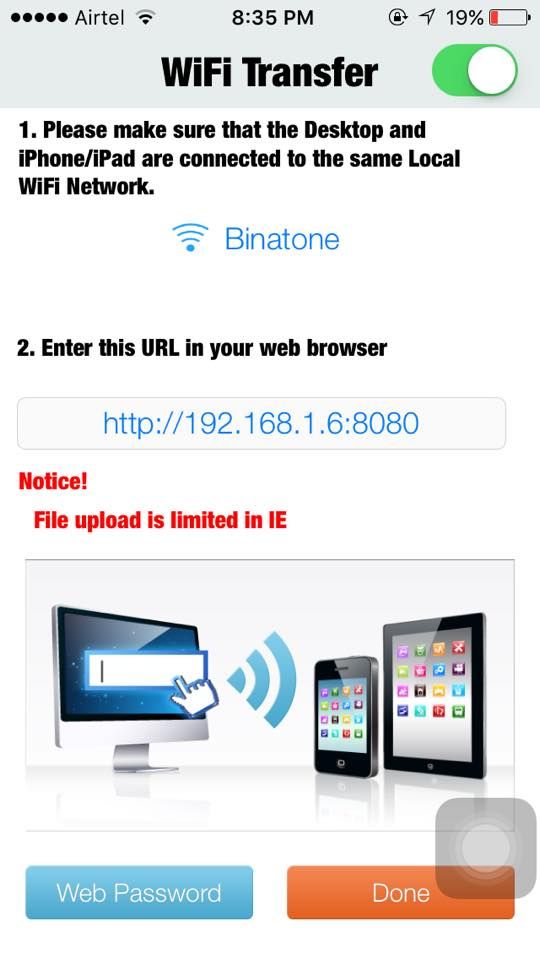
5. Now you will see a screen like below after opening the URL displayed on your iPhone.
6. Now click on the done button on the app of your iPhone and both the devices are interconnected over the same wifi network.
7. Now you can drop the files from PC to iPhone or vice versa and share any of the media between two devices without any need of an external cable.
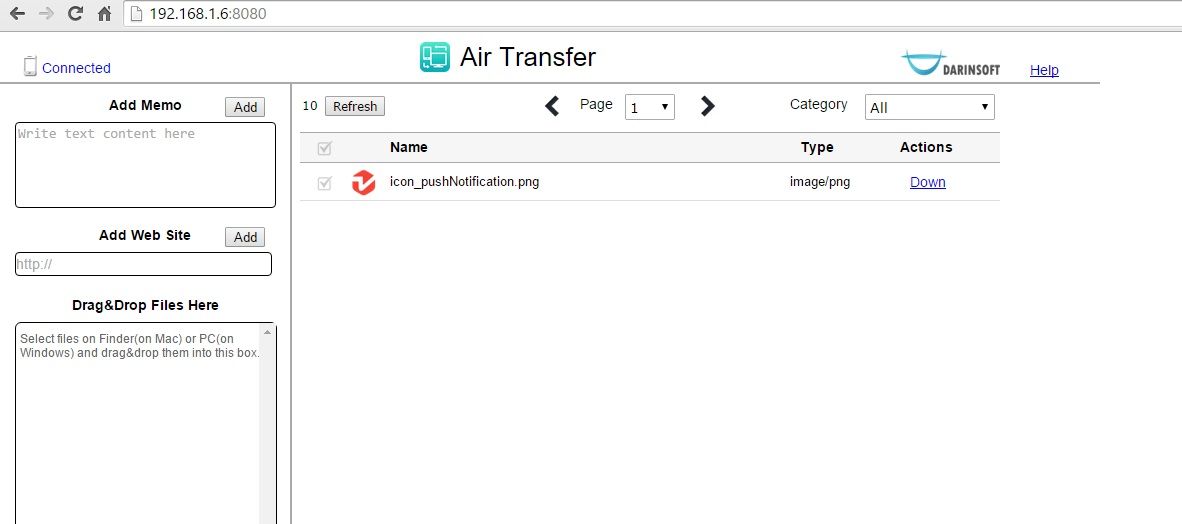
8. That’s if you are done with this, now share files and enjoy the cool sharing tip.
EmoticonEmoticon